Send quotes, invoices and contracts as attachments from your AI
No native connector can attach a file yet. With MailMCP, Claude, ChatGPT or Cursor send your PDF from your own mailbox: by link, by upload in chunks, or as an image inside the email.
Screenshots taken on October 18, 2026 with a demo account.
Short answer: the Gmail connector of Claude only sees attachment metadata, its Microsoft 365 connector reads attachments without sending them, and ChatGPT sends no attachment at all (checked in October 2026). Connect your mailbox to MailMCP, then ask your AI: "Send the quote at this link to the client". MailMCP downloads the file itself and sends it from your mailbox, up to 10 MB per file and 10 files per email.
What you need
- A mailbox connected to MailMCP: Gmail, Outlook or any IMAP/SMTP mailbox.
- MailMCP added as a connector in Claude, ChatGPT or another MCP client.
- Ideally a link to the file: your website, Google Drive or Dropbox, shared with "anyone with the link".
Attachments: what each connector does (October 2026)
| MailMCP | Claude | ChatGPT | |
|---|---|---|---|
| Send a PDF or an image | YES | NO Gmail: metadata only. Outlook: reads them, cannot send them | NO Gmail and Outlook: no attachments |
| Large file (several MB) | YES By link, up to 10 MB per file | NO | NO |
| Image inside the email body | YES | Not documented | Not documented |
| Mailboxes | YES Any IMAP/SMTP mailbox | Gmail or Microsoft 365 | Gmail or Outlook |
Sources: MailMCP tests (June and October 2026), Claude Help Center, OpenAI release notes (June 8, 2026).
Step by step
-
Give your AI a link to the file
The most reliable way is a public link to the PDF. Google Drive and Dropbox share links are turned into direct downloads automatically. The file never goes through the chat, so nothing gets cut or corrupted on the way.
Google Drive: Share → General access → "Anyone with the link". MailMCP cannot download a private link.
-
Ask your AI to send it
Claude or ChatGPT calls the send_email tool of MailMCP with the link as attachment. Depending on your settings, it asks you to approve the action first.
"Send the quote at this link to martin@example.com with a short cover note, and copy me."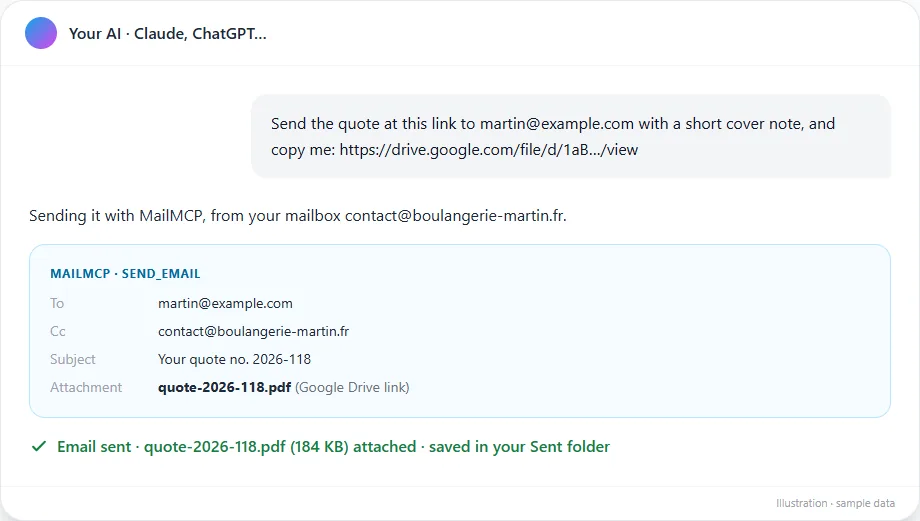
Tap the screenshot to enlarge it. -
The email leaves from your own mailbox
MailMCP downloads the file, attaches it and sends the email through the SMTP server of your mailbox: it lands in your Sent folder, with your signature, like an email you wrote yourself.
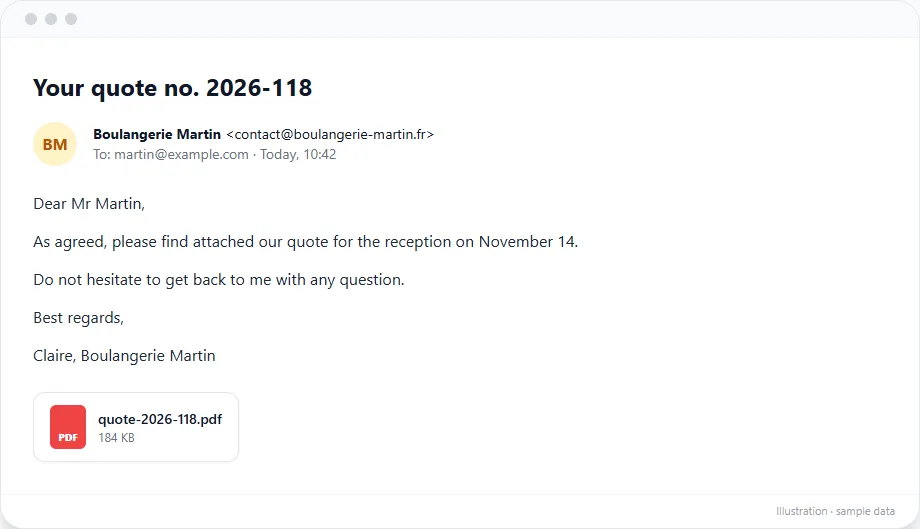
Tap the screenshot to enlarge it. -
No link? The AI uploads the file in chunks
For a file that only exists in the conversation (a PDF you dropped in, a document the AI generated), the AI sends it to MailMCP in pieces with upload_attachment_chunk, then attaches it. It works well for small files; above a few hundred KB, a link is much more reliable.
-
An image inside the email
A logo, a chart or a product photo can appear in the body of the email instead of as an attachment: ask for it ("put our logo at the top"). MailMCP embeds it as an inline image that shows in every email client.
-
Check what was sent
Each send is logged in your dashboard, under MCP logs: tool, mailbox, date and IP. If something went wrong, the error shows there too.
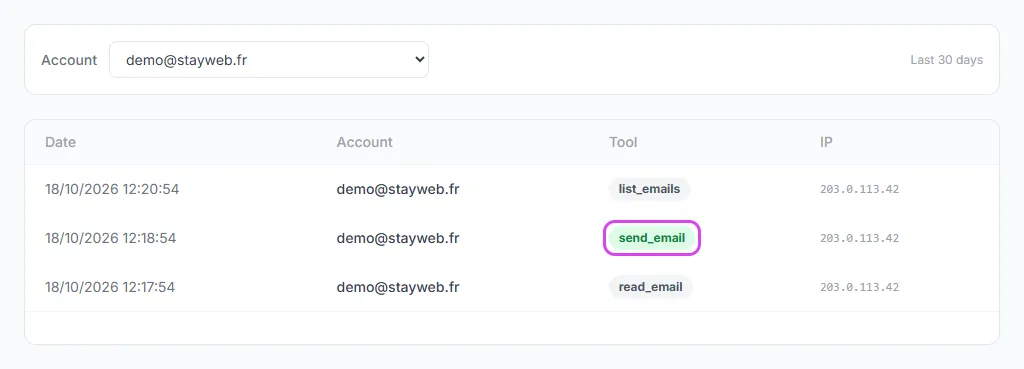
Tap the screenshot to enlarge it.
If it does not work
The AI says it cannot attach files
It is probably using its own Gmail or Outlook connector. Add "with MailMCP" to your request, or turn the native connector off for this conversation.
The attachment arrives empty or corrupted
The AI wrote the file as text inside its request and the transport cut it. Give a link instead (step 1), or let it upload the file in chunks (step 4).
MailMCP cannot download my Google Drive file
The link is private. Set the file to "Anyone with the link", then ask again.
What are the size limits?
10 MB per file, 25 MB per email and 10 files at most.
Other illustrated guides
Still stuck? A real person answers.
Tell us what you see on screen and we will look at your case — support is handled by the people who build MailMCP.
Contact support