Schedule an email from Claude or ChatGPT
No native connector can schedule an email. With MailMCP, your AI writes the email now and it leaves from your mailbox at the time you chose: Monday at 9 am, in three days, or on the first of the month.
Screenshots taken on October 18, 2026 with a demo account.
Short answer: ask your AI "Send this email to the client on Monday at 9 am". MailMCP keeps it and sends it from your mailbox at that time: sending runs every minute, so it leaves within the minute. The AI can list what is scheduled and cancel an email until it leaves. A time given without a time zone is read as Paris time. The Gmail and Outlook connectors of Claude and ChatGPT cannot schedule (checked in October 2026).
What you need
- A mailbox connected to MailMCP, on the free plan or Pro: scheduled sending is included in both.
- MailMCP added as a connector in Claude, ChatGPT or another MCP client.
Scheduled sending: what each connector does (October 2026)
| MailMCP | Claude | ChatGPT | |
|---|---|---|---|
| Send at a set date and time | YES Within the minute | NO | NO |
| List and cancel scheduled emails | YES | NO | NO |
| Scheduled email with an attachment | YES Up to 10 MB per file | NO | NO |
| Mailboxes | YES Any IMAP/SMTP mailbox | Gmail or Microsoft 365 | Gmail or Outlook |
Sources: MailMCP tests (October 2026), Claude Help Center, OpenAI release notes (June 8, 2026).
Step by step
-
Ask for the email and the time
The AI writes the email and calls the schedule_email tool of MailMCP with the date. It answers with the planned time and an ID. Read the time it confirms: that is when the email leaves.
"Write to martin@example.com to confirm our meeting on Thursday, and send it on Monday at 9 am."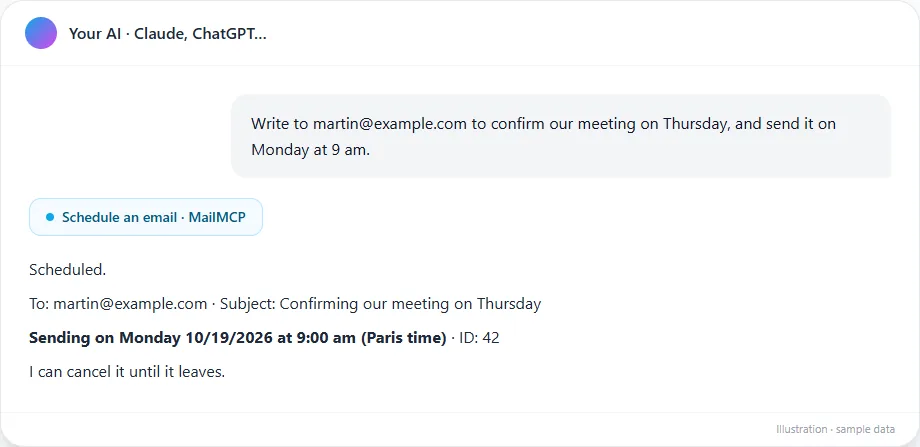
Tap the screenshot to enlarge it. -
Say the date the way you want
A precise date ("October 20 at 8:30"), a weekday ("Monday at 9 am") or a delay ("in 3 days", "in 2 hours", "tomorrow at 2 pm") all work, in French or English. If you give no hour, the AI picks one or MailMCP uses 8 am: check the time in the confirmation. A date in the past is refused.
Not in France? Give your time zone ("9 am New York time"): a time without a time zone is read as Paris time.
-
Schedule a follow-up, and cancel it if they reply
MailMCP does not check for a reply before sending: the reminder leaves on Friday unless you cancel it. If Sophie answers in the meantime, ask the AI to cancel it (next step). A scheduled email is sent as a new message, not as a threaded reply: keep "Re:" and the original subject so she recognises it.
"Schedule a short reminder to Sophie for Friday at 10 am, in case she has not answered my quote." -
See what is scheduled, and cancel
list_scheduled shows the emails waiting, with their date and ID; cancel_scheduled cancels one before it leaves. A scheduled email cannot be edited: to change the text or the time, cancel it and schedule it again.
"Which emails are scheduled? Cancel the reminder to Sophie."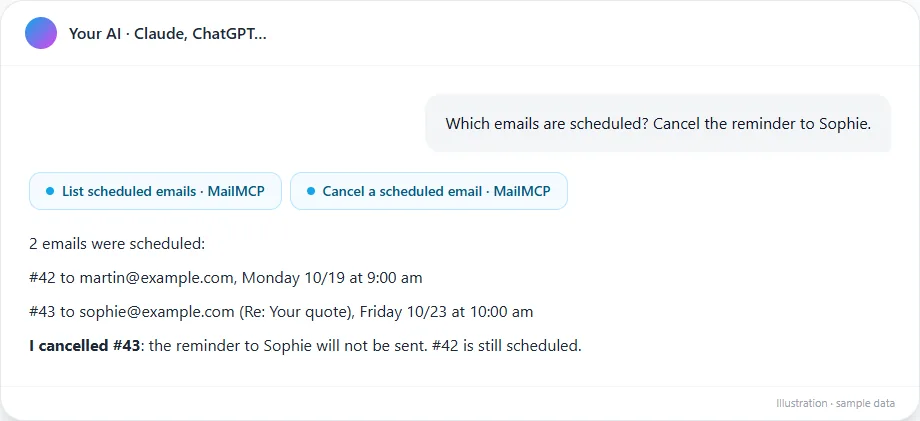
Tap the screenshot to enlarge it. -
It leaves from your mailbox, on time
At the set time, MailMCP sends the email through the SMTP server of your mailbox and puts a copy in your Sent folder. Your recipient gets a normal email from you, sent at that time.
-
Check in the MCP logs
Each schedule_email, list_scheduled and cancel_scheduled call appears in MCP logs with the mailbox, the date and the IP. Scheduling counts as one call, and one email sent, on the day you schedule; the sending itself uses no extra call.
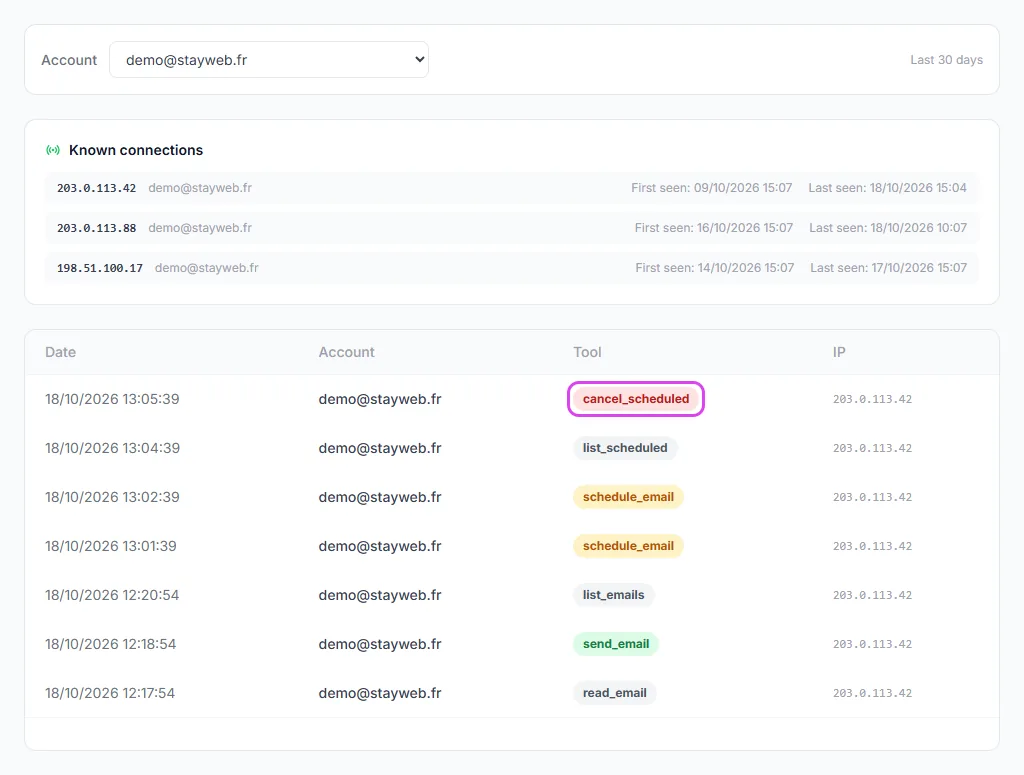
Tap the screenshot to enlarge it.
If it does not work
Can Claude schedule an email?
Not with its Gmail or Microsoft 365 connectors, which send right away or not at all. With MailMCP added as a connector, Claude schedules through the schedule_email tool, on the free Claude plan too.
Can ChatGPT schedule emails?
Its Gmail and Outlook connectors cannot, and they do not send in the EU or the UK. Add MailMCP through Developer mode: ChatGPT can then schedule, list and cancel emails from your mailbox.
Gmail already has "Schedule send": why not use it?
You can, by hand, in Gmail or Outlook. But the connectors of Claude and ChatGPT do not give the AI access to it. With MailMCP the AI schedules for you, from any mailbox.
My scheduled email did not leave
Check your Sent folder first. If it is not there, open the mailbox in your dashboard: a disconnected mailbox, a changed password or a sending pause after spam rejections also stops scheduled emails. A failed email is not retried: schedule it again once the cause is fixed.
Is the email stored until it is sent?
Yes: to send it later, MailMCP keeps the email on its servers in France. A file attached by link is downloaded when you schedule, so the version sent is the one from that moment.
Other illustrated guides
Still stuck? A real person answers.
Tell us what you see on screen and we will look at your case — support is handled by the people who build MailMCP.
Contact support