Verify your email address on MailMCP
A yellow banner at the top of your dashboard means your address is not confirmed yet. Two clicks fix it.
Screenshots taken on October 17, 2026 with a demo account.
Short answer: in the yellow banner at the top of the dashboard, click "Resend email". Open the email "Verify your MailMCP email" and click "Verify my email". Nothing in your inbox after a few minutes? Look in your spam folder and, on a company address, in the quarantine of your mail filter: corporate filters often hold this kind of email.
Step by step
-
Click "Resend email" in the yellow banner
The banner shows the address the link was sent to. If it is right, click "Resend email" to get a new link. Without verification within 10 days, the account is deactivated (not deleted).
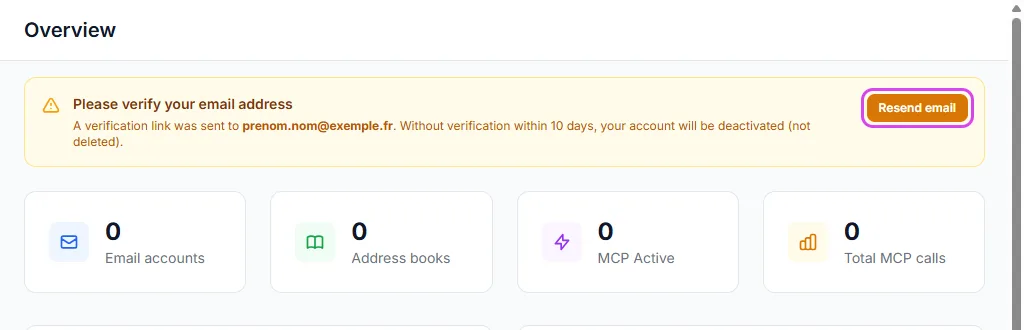
Tap the screenshot to enlarge it. -
Open the email and click "Verify my email"
The email is titled "Verify your MailMCP email" and comes from MailMCP. Click "Verify my email": the banner disappears and you can subscribe to Pro. The link is valid for 10 days.
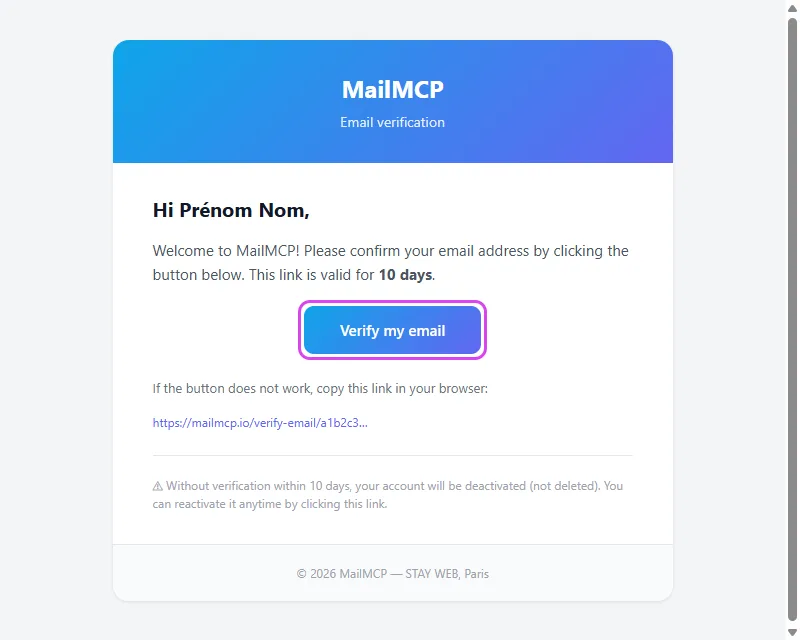
Tap the screenshot to enlarge it.
Email not received?
Look in spam and promotions
Search your mailbox for "MailMCP", including the spam and promotions folders. Mark the email as not spam so the next ones arrive normally.
Company address: check the quarantine
Corporate filters (Microsoft 365, Mailinblack, Vade, Proofpoint…) often hold automatic emails in a quarantine you receive as a daily digest. Release the MailMCP email from there, or ask your IT team.
The address in the banner is wrong
Then the email went elsewhere. Open Profile (your name at the bottom left of the dashboard), correct the address, save, then click "Resend email".
Other illustrated guides
Still stuck? A real person answers.
Tell us what you see on screen and we will look at your case — support is handled by the people who build MailMCP.
Contact support