Add a mailbox to MailMCP, step by step
Type your address, MailMCP recognises your provider and only asks for what that mailbox needs. Three minutes, then your AI can read and send your emails.
Screenshots taken on October 17, 2026 with a demo account.
Short answer: in your dashboard, open Email accounts and click "+ Add a mailbox". Type your email address and click Continue. Then enter your mailbox password (an app password for Gmail, Yahoo and iCloud) or click "Sign in with Microsoft" for Outlook and Microsoft 365. Click "Next — Test connection", then "Validate and create MCP credentials": your server URL is ready to paste into your AI.
What you need
- A MailMCP account (free, no credit card). The free plan connects one mailbox.
- Your mailbox password — or an app password for Gmail, Yahoo and iCloud. Outlook and Microsoft 365 need no password.
Step by step
-
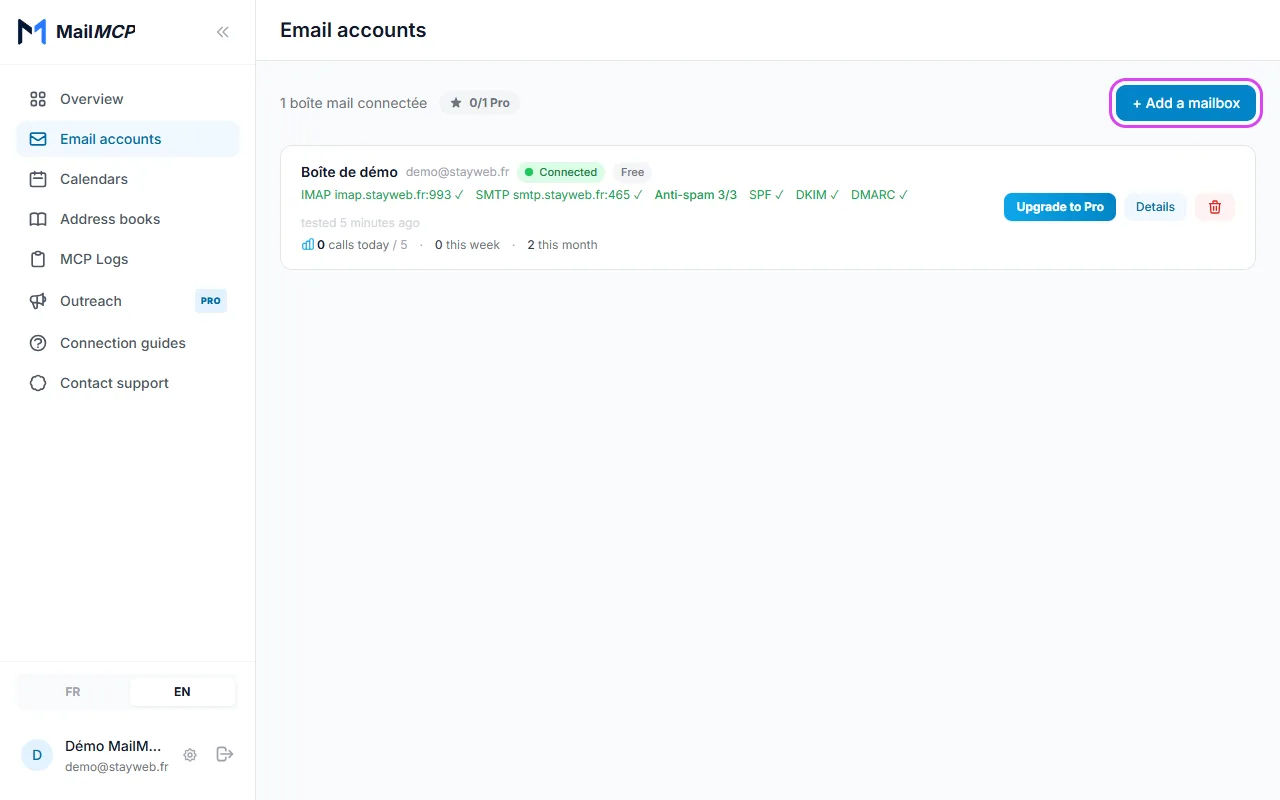
Email accounts → "+ Add a mailbox"
In the dashboard menu, open Email accounts and click "+ Add a mailbox" at the top right.
Tap the screenshot to enlarge it. -
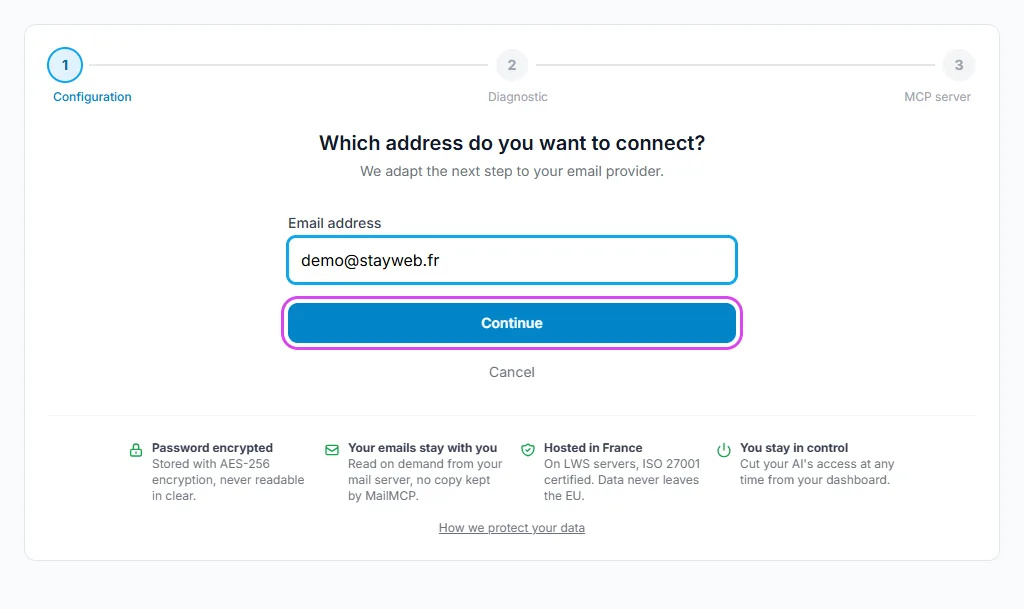
Type your email address
Type only your address and click Continue. MailMCP looks at your domain and its mail servers to recognise the provider, including company domains hosted on Microsoft 365 or Google Workspace.
Tap the screenshot to enlarge it. -
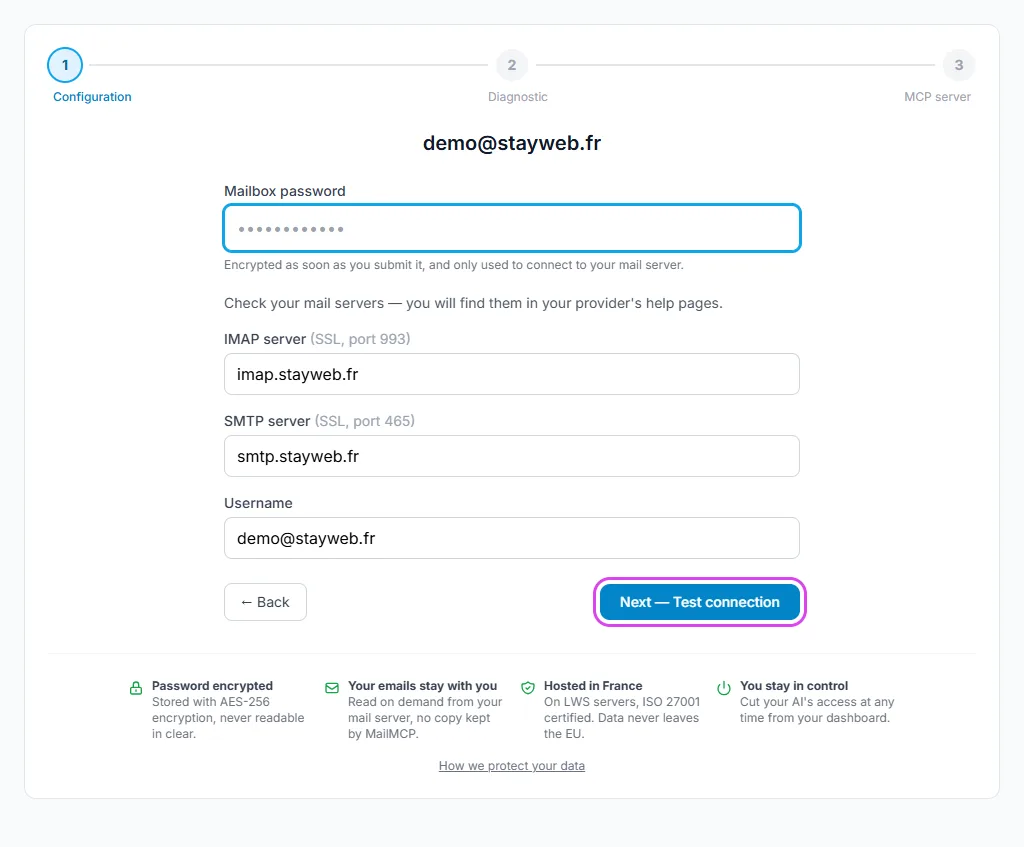
Enter your mailbox password
For most providers (OVH, LWS, Orange, Free, Infomaniak, IONOS, company domains), type your usual mailbox password. If the provider is not recognised, check the IMAP and SMTP servers shown: you will find them in your provider's help pages. Then click "Next — Test connection".
Tap the screenshot to enlarge it. -
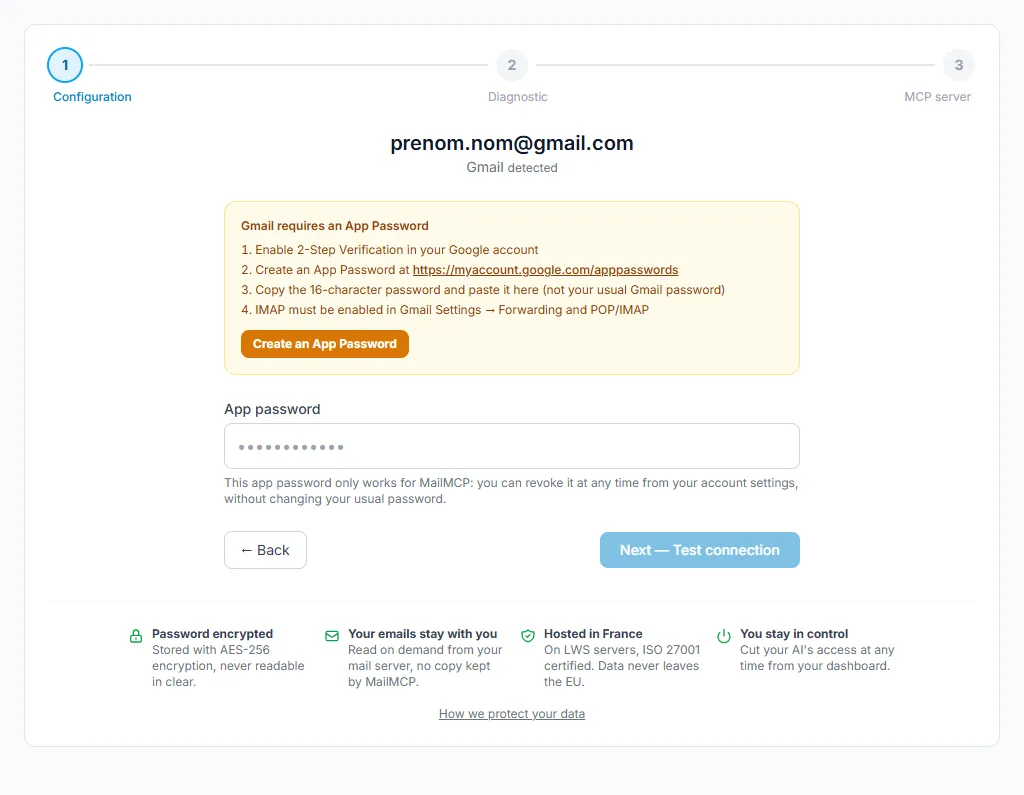
Gmail, Yahoo, iCloud: an app password
For these three providers, your usual password does not work. The wizard shows the steps and a "Create an app password" button: paste the code you get (16 characters for Gmail).
Tap the screenshot to enlarge it. -
Outlook, Hotmail, Microsoft 365: "Sign in with Microsoft"
Microsoft no longer accepts passwords for IMAP, not even app passwords. Click "Sign in with Microsoft" and sign in on Microsoft's own page: MailMCP never sees your password.
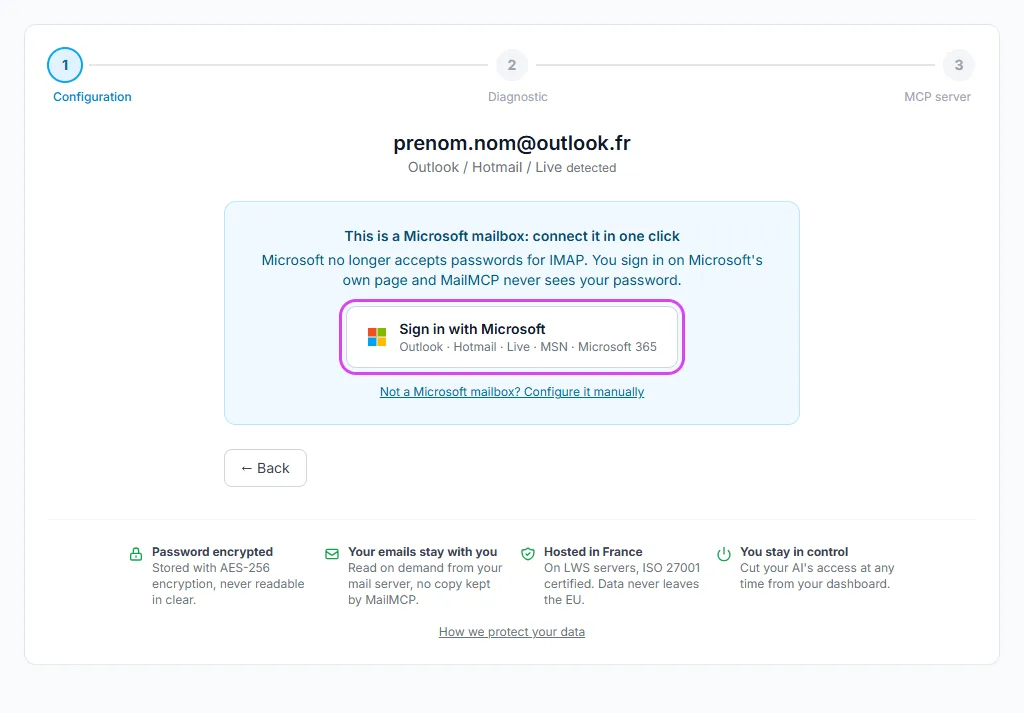
Tap the screenshot to enlarge it. -
Connection verified → create the credentials
When the IMAP and SMTP tests pass, MailMCP shows the summary. Click "Validate and create MCP credentials". If a test fails, the diagnostic screen explains why (wrong password, app password required, wrong server).
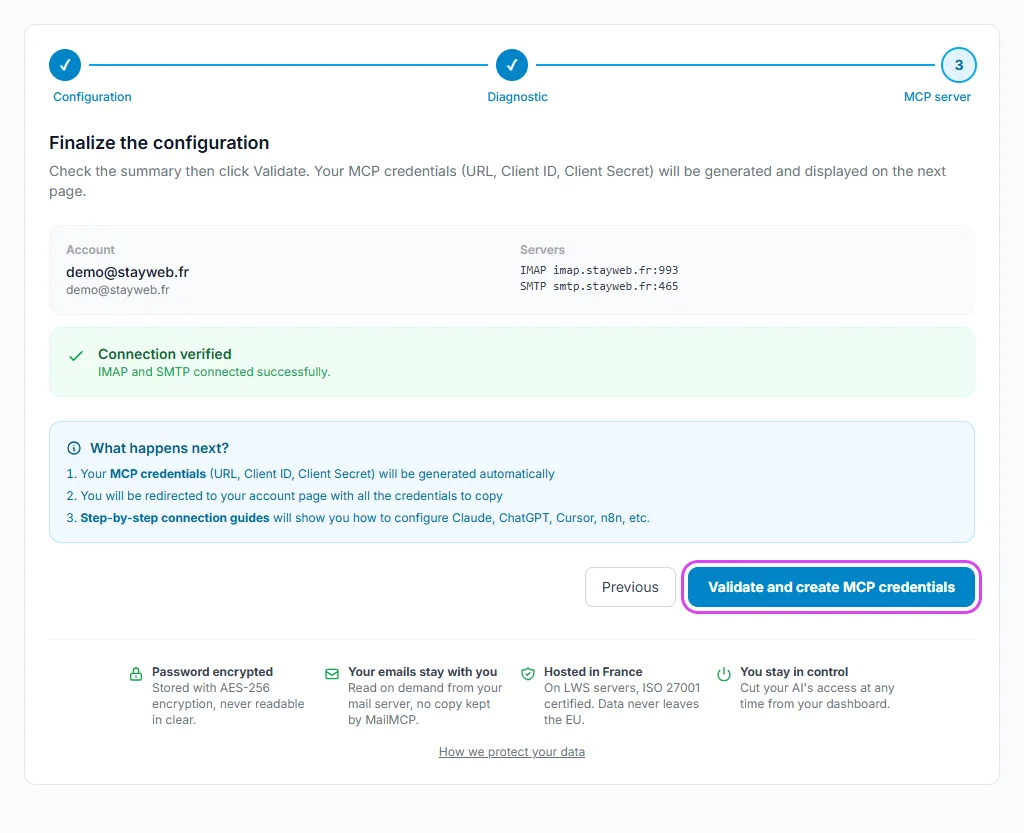
Tap the screenshot to enlarge it. -
Copy your server URL
Your mailbox page opens on the MCP Credentials tab. Copy the "MCP server URL" and paste it into Claude, ChatGPT or any MCP client. It is unique to this mailbox: never share it publicly.
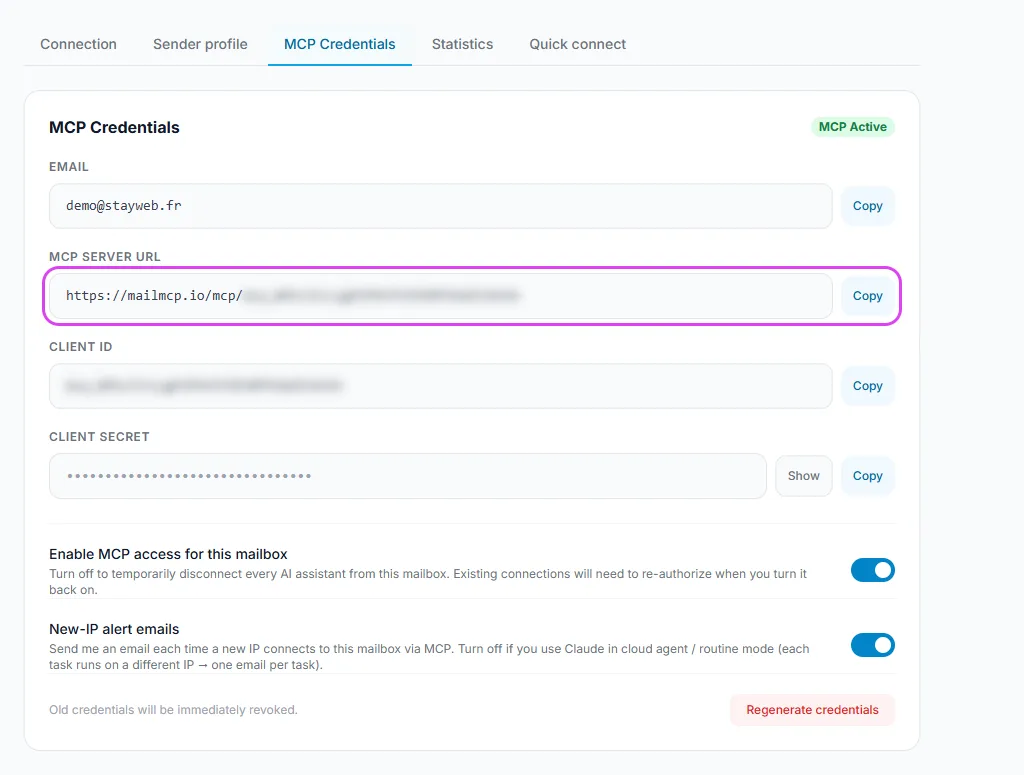
Tap the screenshot to enlarge it.
If it does not work
"Authentication refused" during the test
The password is wrong or your provider requires an app password (Gmail, Yahoo, iCloud). For Outlook and Microsoft 365, use "Sign in with Microsoft": no password works anymore.
The test hangs or times out
The IMAP or SMTP server is probably wrong. Check the server names in your provider's help (IMAP SSL port 993, SMTP SSL port 465; 587 is tried automatically).
I cannot add a second mailbox
A free account connects one mailbox. Upgrade one mailbox to Pro first; after that you can add as many as you need, and each extra mailbox stays free unless you upgrade it too.
Proton Mail does not connect
Proton only offers IMAP through Proton Mail Bridge, an app that runs on your own computer: a cloud service like MailMCP cannot reach it.
Other illustrated guides
Still stuck? A real person answers.
Tell us what you see on screen and we will look at your case — support is handled by the people who build MailMCP.
Contact support