Your mailbox settings in MailMCP
Everything is on the mailbox page: connection, sender profile and MCP credentials. Here is where each setting lives and what it does.
Screenshots taken on October 17, 2026 with a demo account.
Short answer: open Email accounts, click Details on the mailbox. The Connection tab updates the password or servers ("Save and test connection"). The Sender profile tab holds the sender name and signature. The MCP Credentials tab has the switches "Enable MCP access for this mailbox" and "New-IP alert emails", and the "Regenerate credentials" button.
Step by step
-
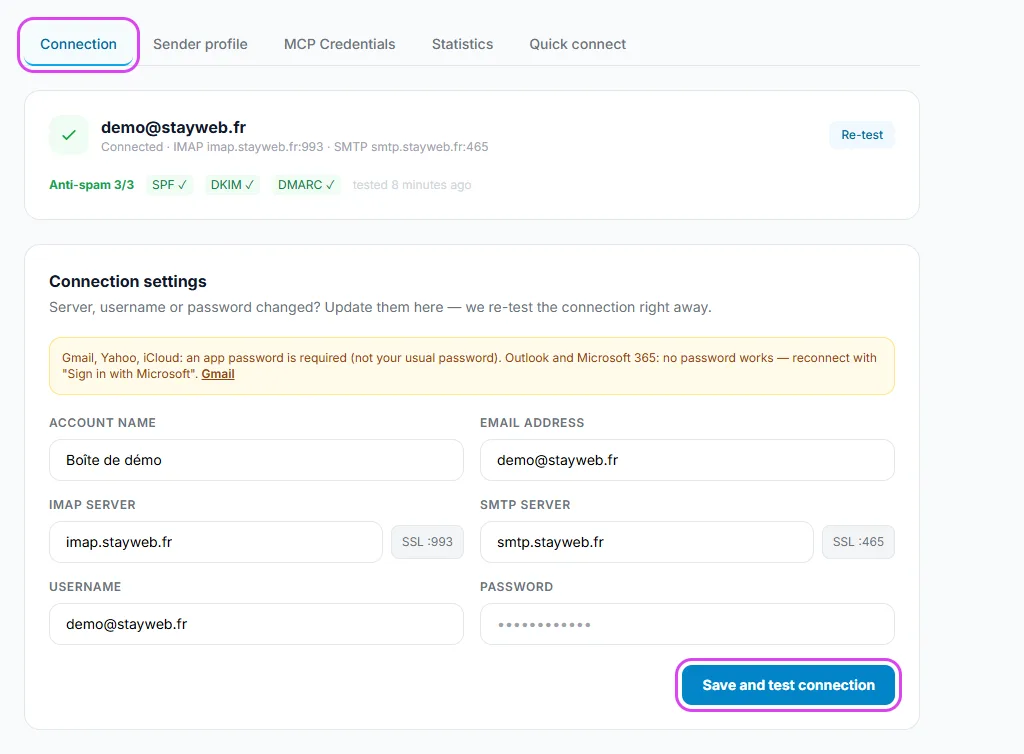
Changed your mail password? Connection tab
Open Email accounts, click Details on the mailbox: the Connection tab opens. Type the new password (or new servers) and click "Save and test connection". The Re-test button checks the connection again without changing anything.
Tap the screenshot to enlarge it. -
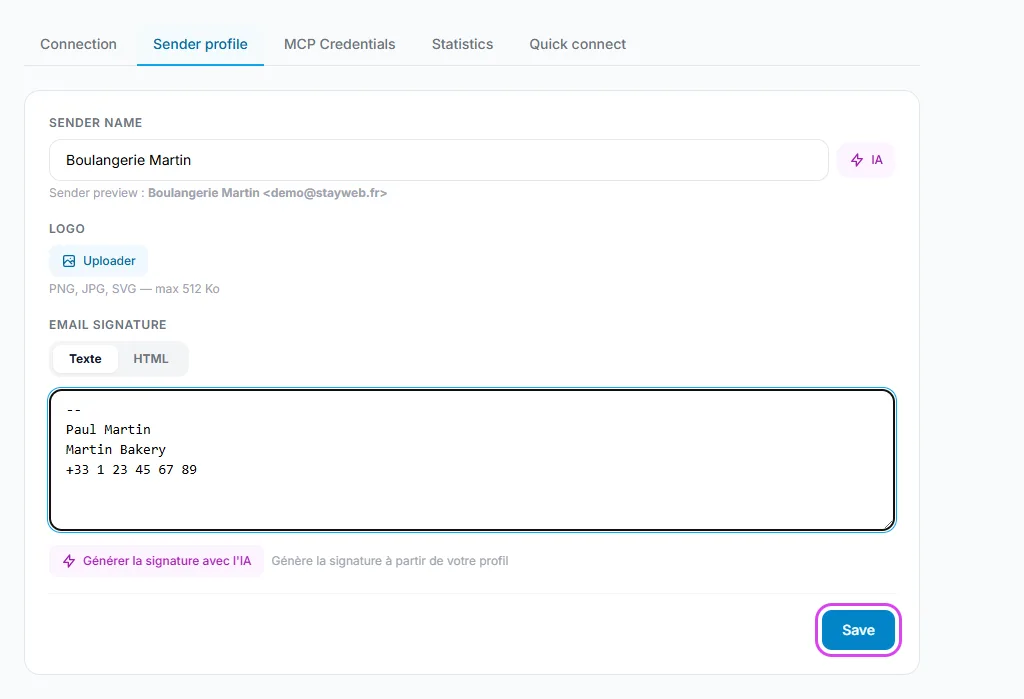
Sender name and signature: Sender profile tab
Set the name your recipients see, an optional logo and the signature added to emails sent by your AI (text or HTML). The AI buttons can write them for you. Click Save.
Tap the screenshot to enlarge it. -
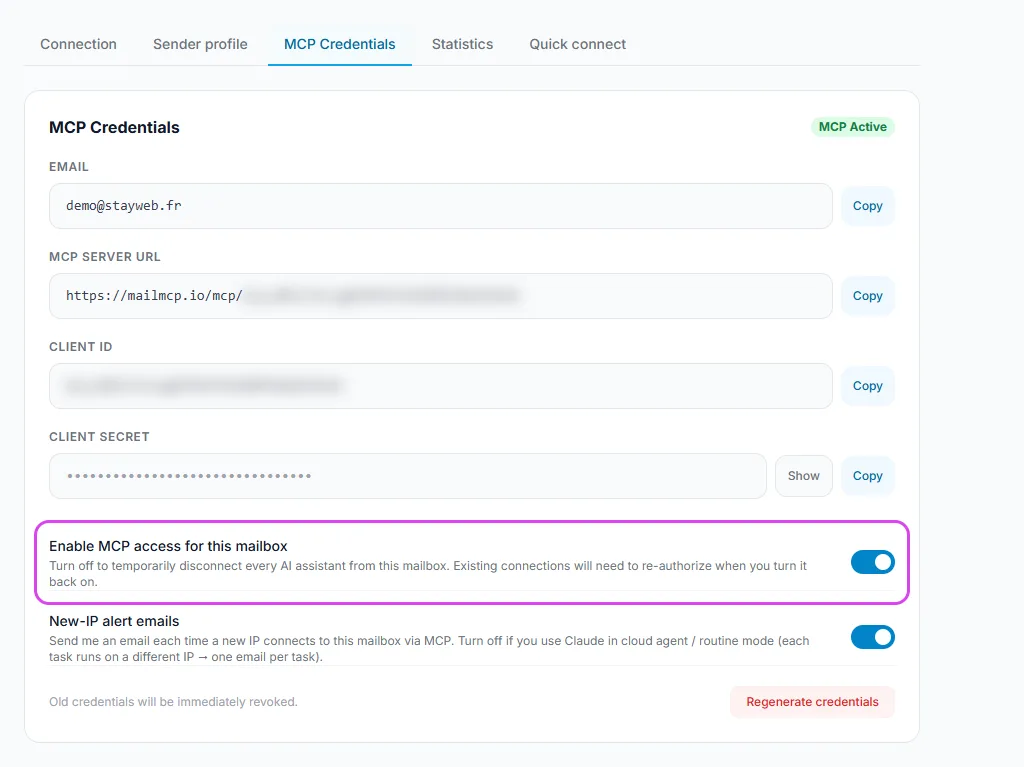
Cut the AI off: "Enable MCP access for this mailbox"
In the MCP Credentials tab, this switch disconnects every AI assistant from the mailbox at once. When you turn it back on, each assistant has to authorise access again.
Tap the screenshot to enlarge it. -
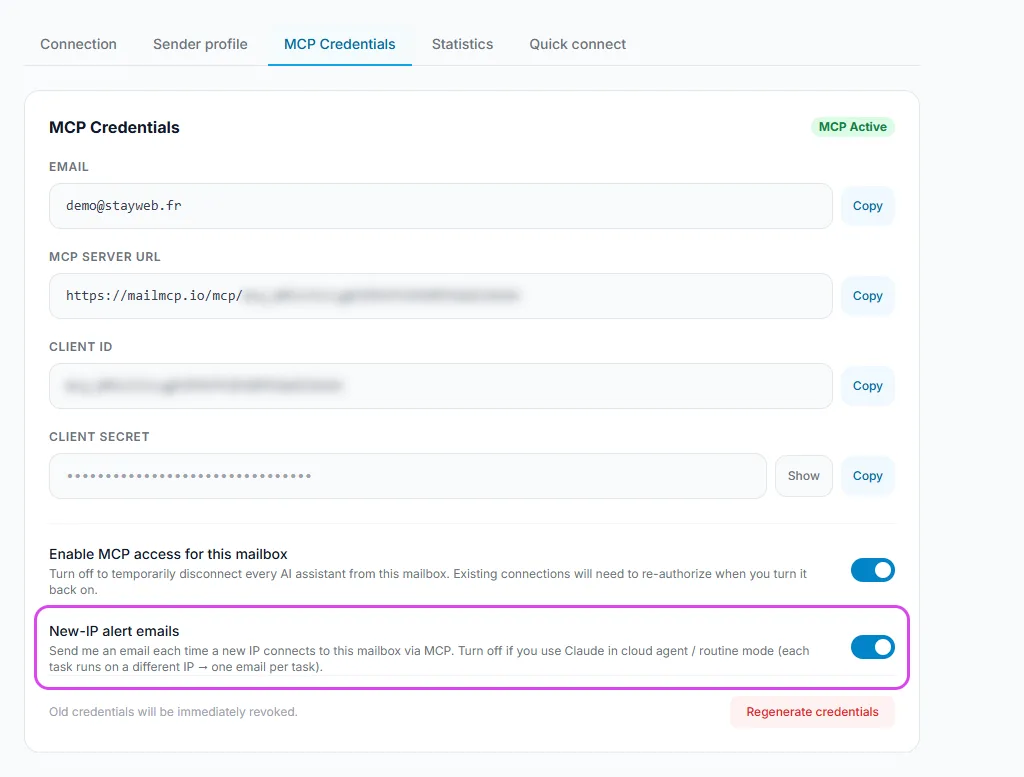
Too many security emails: "New-IP alert emails"
By default you get an email each time a new IP address uses the mailbox. Claude and ChatGPT change IP addresses often, especially in agent or routine mode: turn this switch off if the alerts bother you. You decide; we never change it for you.
Tap the screenshot to enlarge it. -
Leaked secret or "invalid_client": "Regenerate credentials"
This button creates a new Client ID, Client Secret and server URL. The old ones stop working immediately: paste the new URL into your AI app and reconnect it. Use it if a secret was shared by mistake or if your AI shows "invalid_client".
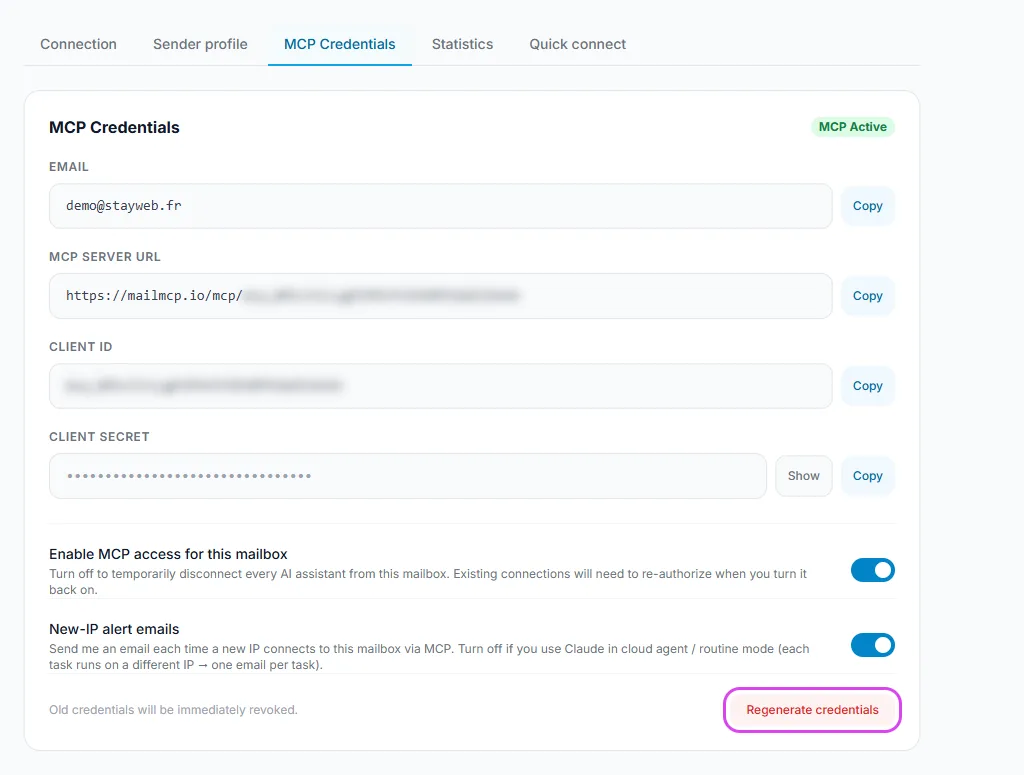
Tap the screenshot to enlarge it.
If it does not work
My AI shows "invalid_client" or 401
Check that the "MCP Active" badge is on and that the URL in your AI is the one shown in the MCP Credentials tab. If in doubt, regenerate the credentials and paste the new URL.
I receive an email for every request
Those are new-IP alerts: AI services connect from rotating addresses. Turn off "New-IP alert emails" in the MCP Credentials tab of that mailbox.
The mailbox shows "Disconnected"
The password was changed at your provider or an app password was revoked. Enter the new one in the Connection tab and click "Save and test connection".
Other illustrated guides
Still stuck? A real person answers.
Tell us what you see on screen and we will look at your case — support is handled by the people who build MailMCP.
Contact support